# ps1-craft — Global & Portable Bash Prompt
Elegant, portable, and easy-to-install Bash prompt with seasonal palettes, time-aware emoji, and clean powerline structure.
## ⚡ 10-Second Demo
```text
[Mon 14:32 steffen] ▶
@host ~/ps1-craft ⟦main⟧ ✨
```
Preview (Aurora seasonal):

---
## ⚡ Quick Look
- Theme gallery + full specs: [Theme Library](library.md)
- Install scope + rollback: [UNINSTALL.md](UNINSTALL.md)
- Packs: Seasonal (auto), Contest, Holidays, Custom, Git
- Layout order option: day-time-user, user-time, time-user, day-time
- Optional git capsule across themes
## ✅ Requirements (Nerd Fonts)
This prompt relies on Nerd Fonts glyphs for the rounded separators.
```bash
bash dotfiles/install/install-nerdfont.sh
```
After install:
- Set your terminal font to JetBrainsMono Nerd Font (or any Nerd Fonts family)
- Manual download: https://www.nerdfonts.com/font-downloads
If you use a non‑Nerd font, the prompt falls back to ASCII/Unicode.
---
## ⚠️ Safety / Scope (global install)
Linux/WSL installs are global and modify system files:
- Writes `/etc/profile.d/ps1.sh` and `/etc/profile.d/banner.sh`
- Writes `/etc/ps1-season`, `/etc/ps1-style`, and `/etc/ps1-punchline`
- Adds a managed source block in `/etc/bash.bashrc`
Rollback and uninstall steps live in [UNINSTALL.md](UNINSTALL.md). You can also disable per user:
- `export DISABLE_GLOBAL_PS1=1`
- `export DISABLE_GLOBAL_BANNER=1`
- `touch ~/.config/ps1/disable` (PS1) or `touch ~/.config/ps1/disable-banner` (banner)
---
## 🚀 Install
### 🐧 Linux / WSL (global, all users)
1) Clone the repo:
```bash
git clone git@github.com:Hawolex/ps1-craft.git
```
2) Enter the folder:
```bash
cd ps1-craft
```
3) Run the global installer (auto-installs deps + prompts for punchline):
```bash
sudo bash dotfiles/install/install-linux-global.sh
```
4) Open a new shell to see the prompt and banner.
### 🍏 macOS (per-user)
1) Clone the repo:
```bash
git clone git@github.com:Hawolex/ps1-craft.git
```
2) Enter the folder:
```bash
cd ps1-craft
```
3) Run the user installer:
```bash
bash dotfiles/install/install-macos-user.sh
```
4) Reload your shell (or open a new terminal):
```bash
source ~/.bashrc
```
Installer menu (structure)
```text
Install options
├─ 1) PS1 only
├─ 2) Banner only
└─ 3) Both (PS1 + banner)
└─ PS1 mode
├─ 1) Single season (static)
│ ├─ Pick season (Winter/Spring/Summer/Autumn)
│ └─ Layout order (day-time-user / user-time / time-user / day-time)
├─ 2) Dynamic season (auto)
│ └─ Layout order (day-time-user / user-time / time-user / day-time)
├─ 3) Contest pack (static)
│ ├─ Layout order
│ └─ Style preset (Aurora/Neon/Forge/Circuit/Mono/Git/Hawolex/HawolexV2)
├─ 4) Holidays pack (static)
│ ├─ Pick holiday (Christmas/Easter/Halloween/Valentine/Thanksgiving/NewYear)
│ └─ Layout order
└─ 5) Custom pack (static)
└─ Style (Radar/Synthwave/Noir/Topo/Glitch/ArcticFire/AcidLime)
Final prompt:
└─ Enable git capsule for all themes? [y/N]
```
Installer choices
Linux/WSL:
- PS1 only / Banner only / Both
- PS1 modes: Single season, Dynamic season, Contest pack, Holidays pack, Custom pack
- Dynamic season auto-switches by time of year (Spring: Mar–May, Summer: Jun–Aug, Autumn: Sep–Nov 14, Winter: Nov 15–Feb)
- Layout order (day-time-user, user-time, time-user, day-time) for seasonal and contest modes
macOS:
- PS1 modes: Single season, Dynamic season, Contest pack, Holidays pack, Custom pack
- Dynamic season auto-switches by time of year (same ranges as Linux)
- Layout order (day-time-user, user-time, time-user, day-time) for seasonal and contest modes
---
## ✨ Features
- Two-line, powerline-style prompt
- Seasonal palettes + time-based emoji accents
- Smart path shortening (keeps home visible)
- Status-colored prompt arrow
- Works on Linux, WSL, and macOS
- Per-user disable switch
---
What gets installed
### Linux / WSL
- Installs the prompt module to `/etc/profile.d/ps1.sh`
- Installs the banner module to `/etc/profile.d/banner.sh`
- Sources both from `/etc/bash.bashrc`
- Installs `landscape-common`, `figlet`, and `lolcat` if missing
- Prompts for the global punchline used by the banner
- You can change the selection or remove PS1/banner by running the installer again
### macOS
- Copies `ps1/ps1.sh` to `~/.config/ps1/ps1.sh`
- Adds a source block in `~/.bashrc` and `~/.bash_profile`
---
PS1 module (when it runs)
- Linux/WSL: sourced from `/etc/bash.bashrc` (global)
- macOS: sourced from `~/.bashrc` and `~/.bash_profile` (per-user)
You normally do not need to run `ps1.sh` manually.
---
Banner (hostname + punchline + sysinfo)
On Linux/WSL, a banner is also shown on login:
- `figlet $(hostname) -c | lolcat`
- `figlet -f digital "" -c | lolcat`
- `landscape-sysinfo | lolcat`
### Punchline (global)
The banner reads the punchline from:
- `/etc/ps1-punchline`
The install script prompts for a punchline and stores it in the file. You can also set it manually:
```bash
echo "Your punchline" | sudo tee /etc/ps1-punchline >/dev/null
```
---
## 🎛️ Themes & Style Packs
Terminology:
- Theme = palette + emoji set
- Style = layout + separators
- Pack = a curated set of styles/themes
### 🏁 Contest Pack
The contest pack is a bold, DEFCON-ready set of five styles (Aurora, Neon, Forge, Circuit, Mono) with optional layout order. It always starts on a new line and ends with `@host - /path`.
Note: This repo was built with AI assistance, and the contest pack itself is fully AI-authored.
---
Custom Pack (bold styles)
Seven extra styles, built to be loud and expressive:
- Radar: green scanline HUD
- Synthwave: pink/cyan/orange glow blocks
- Noir: near-black minimal + red path
- Topo: elevation-style path segments
- Glitch: jitter separators + neon
- ArcticFire: icy blues into ember orange
- AcidLime: black + electric green
Custom styles add a small context badge when relevant (`ssh`, `ctr`, `git`).
---
Git Theme (details)
The Git theme adds a repo-aware capsule on line 2 that only appears inside a Git repo. The branch name is wrapped as `⟦branch⟧`, and status emojis reflect state:
```text
Clean ✨
Dirty 🔨
Staged 📌
Untracked 🧷
Stashed 📦
```
It uses the same two-block layout as Aurora, but focuses on signal and minimal noise for fast scanning. Use it when you want repo status on every command without a full VCS prompt.
Git capsule switch:
- `PS1_GIT=1` enables the git capsule on all themes
- Git theme always shows it, regardless of `PS1_GIT`
---
Holidays Pack (themes)
Holidays pack uses themed palettes + emojis and the contest layout order:
- Christmas, Easter, Halloween, Valentine, Thanksgiving, New Year
---
## 🧭 Theme Design Notes
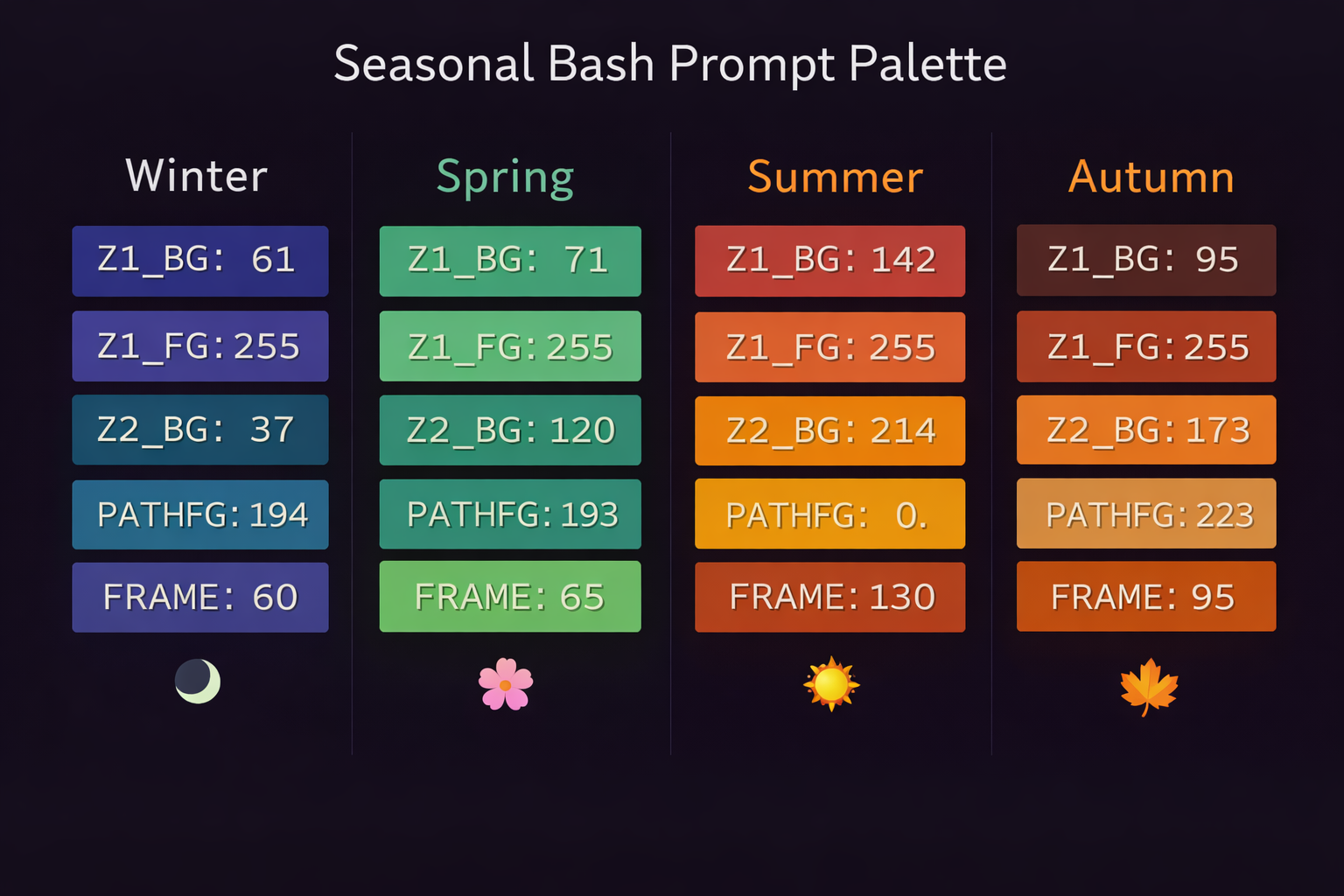
- **Aurora (seasonal):** calm hierarchy, subtle gradients, long-term readability
- **Contest styles:** bold contrast and distinct silhouettes for instant recognition
- **Custom pack:** experimental, high-signal variants for strong personal style
- **Holidays:** themed colors + emojis without compromising legibility
---
Emoji palette
Fixed times (all seasons):
- Lunch 11:00–11:29 = 🥪
- Dinner 16:00–16:59 = 🍲
Seasonal sets (sunrise / work):
- Spring: 🌷 🌱 🐣 🌤 / 🌿 🪴 🐝 🌼
- Summer: 🌞 🏖️ 🌅 🌤 / 🏄 🏖️ 🚤 🌴
- Autumn: 🍁 🍂 🌫️ 🌦️ / 🍂 🍄 🎃 🪵
- Winter: 🏔️ 🌨️ ❄️ 🌌 / 🎿 ⛷️ 🏂 🧊
Time slots:
- Sunrise: 05:00–08:59
- Coffee: 09:00–10:59
- Work: 11:30–15:59 (unless lunch overrides)
- Evening: 17:00–22:59
- Night: 23:00–04:59
Meaning:
- Emoji is a light accent for time/season; it never replaces core info
---
## 🗂️ Repo Structure
```text
.
├── .editorconfig
├── .github/
│ └── workflows/
│ └── shellcheck.yml
├── .gitignore
├── CONTRIBUTING.md
├── LICENSE
├── README.md
├── UNINSTALL.md
├── library.md
├── dotfiles/
│ ├── banner/
│ │ └── banner.sh
│ ├── ps1/
│ │ └── ps1.sh
│ └── install/
│ ├── install-global-ps1.sh
│ ├── install-linux-global.sh
│ ├── install-macos-user.sh
│ └── install-nerdfont.sh
└── images/
├── bash-pallete.png
└── themes/
```
Overrides (Optional)
Sometimes autodetection doesn’t work (e.g., on macOS without fontconfig):
Force Nerd Fonts glyphs:
```bash
export PS1_FORCE_NF=1
```
Force fallback (no powerline glyphs):
```bash
export PS1_FORCE_ASCII=1
```
Add these to your `~/.bashrc` or `~/.bash_profile`.
---
## ⚙️ Performance Notes
- Git capsule work only runs inside a Git repo and only when enabled
- Large repos can slow status checks; disable with `PS1_GIT=0` or avoid the Git theme
- Prompt logic avoids external commands unless a feature is enabled (banner, git capsule)
---
Disable prompt (per user)
If you want to disable the global prompt for your account:
Temporarily in a shell:
```bash
export DISABLE_GLOBAL_PS1=1
```
Permanently:
```bash
mkdir -p ~/.config/ps1
touch ~/.config/ps1/disable
```
To re-enable:
```bash
rm -f ~/.config/ps1/disable
```
---
Testing
After install, open a new shell and run:
```bash
bash -i -c 'echo OK'
```
If you see a prompt with colors and emoji, things are working.
---
Usage notes
Font matters: even with Nerd Fonts installed, you must select them in your terminal settings.
Works on terminals like:
- GNOME Terminal
- iTerm2
- Kitty
- VS Code integrated terminal
- Windows Terminal (WSL)
If you see squares or missing glyphs, your terminal is likely using a non-Nerd font.
---
## 📸 Theme Gallery
Seasonal (Aurora):




Contest pack:








Holidays pack:






Custom pack:







Palette reference:
---
## 🛠️ Contribution
Want to help improve this project?
- See [CONTRIBUTING.md](CONTRIBUTING.md) for style rules and how to add a new theme/palette
---
## 📄 License
MIT © 2026 Steffen Skui